Settings
What is it?
Section titled “What is it?”Under Settings (menu at the top right, Account section) you see your profile, change your password and choose the interface language.
Who is it for?
Section titled “Who is it for?”For all users and editors.
Step by step
Section titled “Step by step”For User
Choose the language
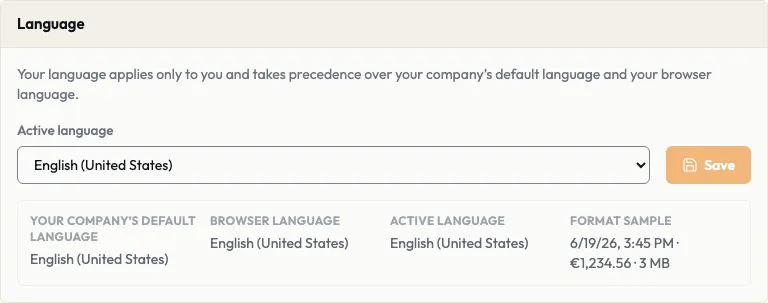
Section titled “Choose the language”- Open Settings and go to the Language card.
- Choose the language you want under Active language.
- Click Save.
The language you choose applies to you only and takes precedence over your company’s default language and your browser’s language. It also decides how dates, times, amounts and file sizes are shown; the Format sample shows this in advance. The Automatic option brings back the default or browser language.
Change your password
Section titled “Change your password”- In Settings, click Send password link under Password.
- Open the email sent to your stored address and follow the link.
- Set your new password. It applies from your next sign-in.
Password changes run through central account management, so you always receive the link by email.
Limits and rules
Section titled “Limits and rules”Under Profile you see your name, username, email and role. You do not change these details yourself; contact your administration. Your role and your teams are also assigned by your administration.
Frequently asked questions
Section titled “Frequently asked questions”I did not receive the email with the password link. Check your spam folder and whether the correct email address is shown under Profile. If it is wrong, contact your administration.
Why is the interface in a different language from my browser? Your chosen language or your company’s default language takes precedence. Choose the language you want under Active language and save.
Can I change my name? Not yourself. Your administration changes your name and email address for you.