Chat
What is it?
Section titled “What is it?”In chat you ask questions, have texts reviewed or drafted and bring in knowledge from the library. Your conversations are listed on the left under Recent.
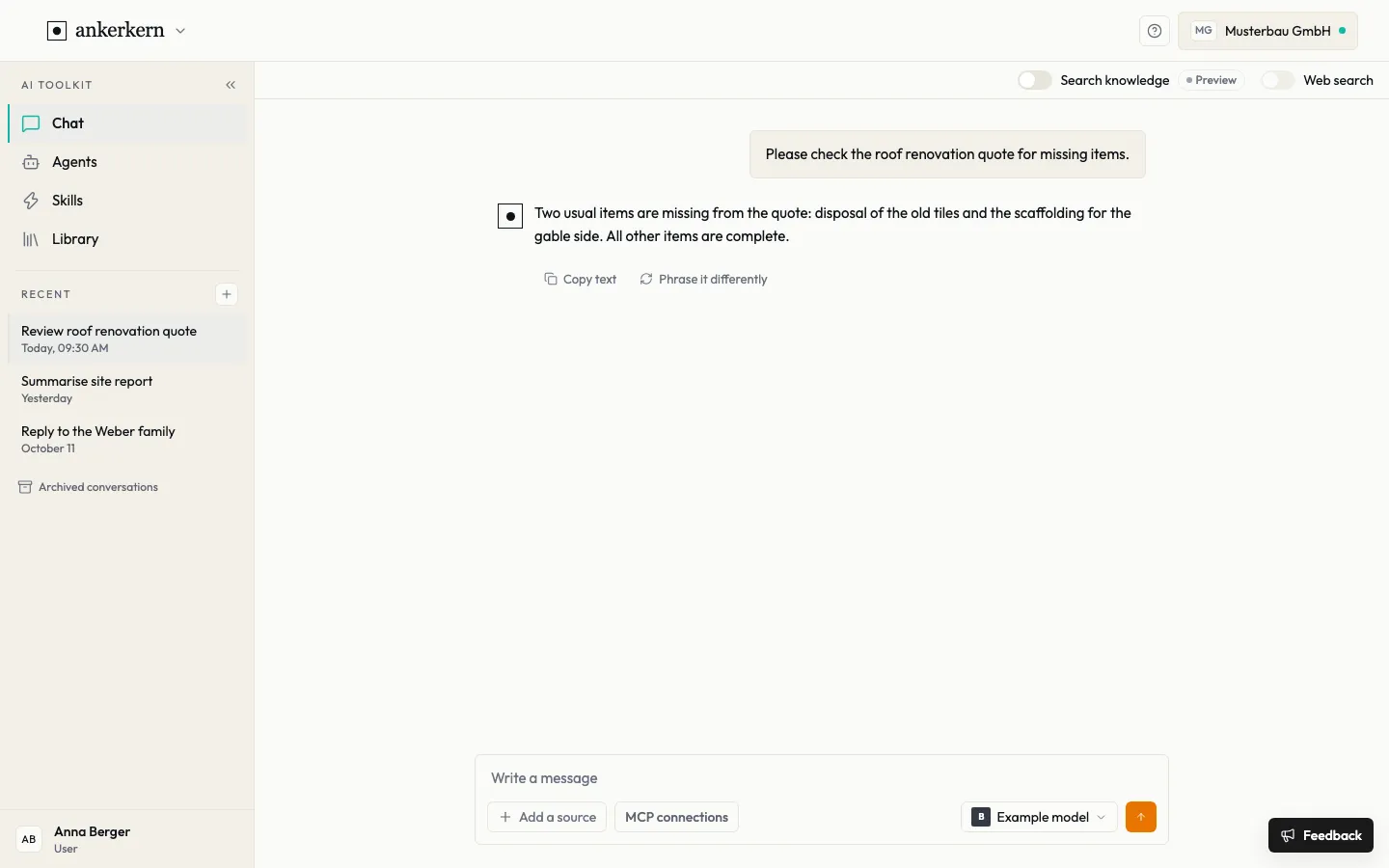
Typical tasks are checking a quote for missing items, summarising a site report or drafting a reply to a customer. Add the relevant document as a source, and the answer is based on it.
Who is it for?
Section titled “Who is it for?”For all users and editors.
Step by step
Section titled “Step by step”For User
Start a conversation
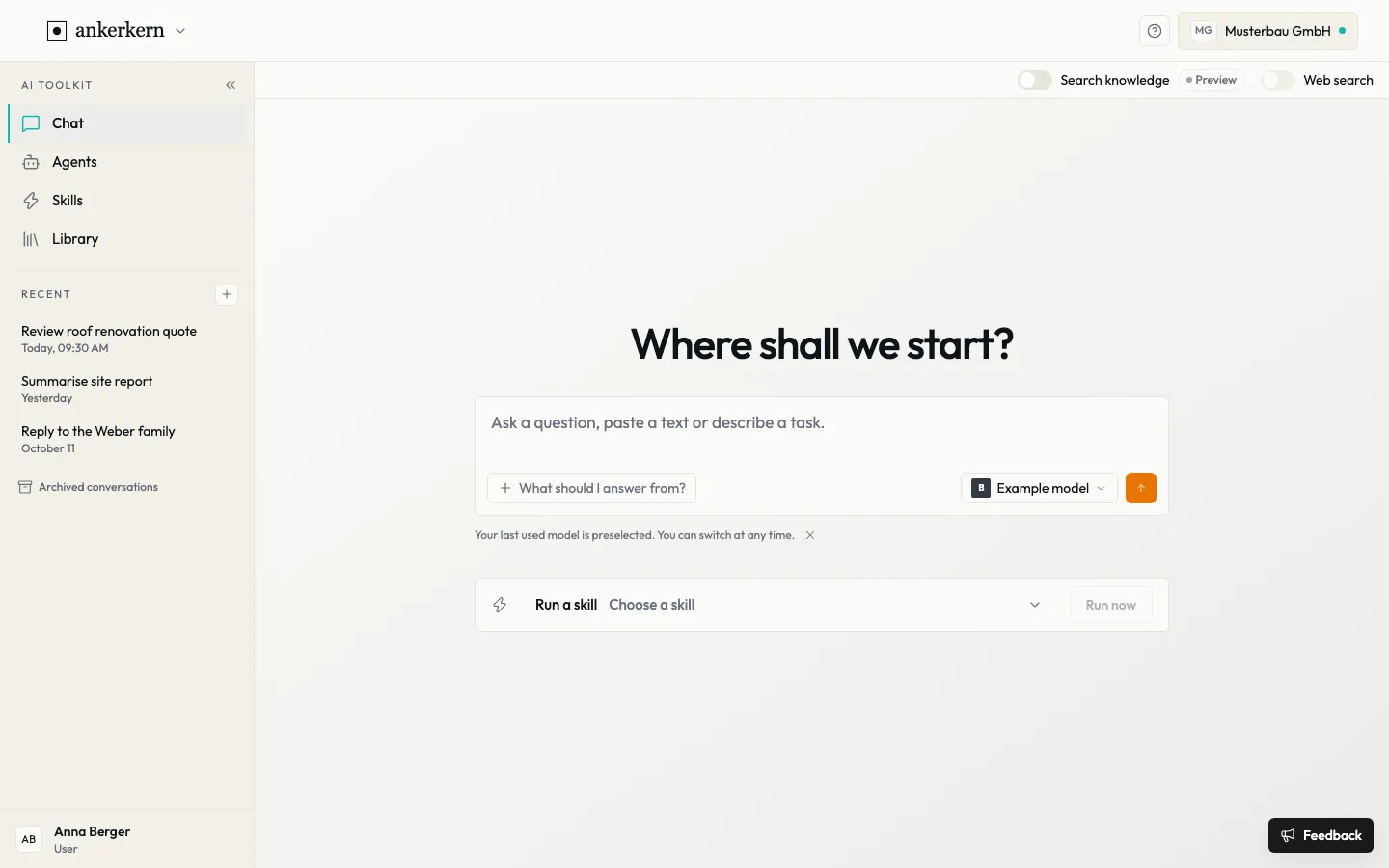
Section titled “Start a conversation”- Click + next to Recent. The start page Where shall we start? opens.
- Check the model on the right of the input field. The button with the model name opens the selection; you can choose from the models your administration has released.
- Ask a question, paste a text or describe a task.
- Send with the arrow button next to the model.
Below every answer you find Copy text and Phrase it differently. You write your next message in the Write a message field at the bottom.
Add sources
Section titled “Add sources”- On the start page click What should I answer from?, in an ongoing conversation Add a source.
- Under Your sources choose:
- Attach a file to upload a file from your computer,
- From the library to search stored documents,
- Take a photo with your device’s camera, or
- Screenshot for part of your screen.
- Under Systems you find the connections released to you. Connect opens your provider’s sign-in; only what you confirm there is granted.
Let the answer draw on your knowledge
Section titled “Let the answer draw on your knowledge”At the top right you see the Search knowledge switch with the Preview label: over the coming weeks the index may be rebuilt several times.
- Switch on Search knowledge and ask your question.
- The model decides itself whether and when to search the library. Where it uses passages, the answer names them as [1], [2]. If it finds no matching source, it says so.
- The sources are listed under Basis; a click opens the entry in the library.
Run a skill in chat
Section titled “Run a skill in chat”- On the start page, choose a skill under Run a skill.
- Fill in the skill’s required fields. Whatever is in the input field goes along.
- Click Run now. The result appears as the answer in a new chat.
Find and archive conversations
Section titled “Find and archive conversations”- Open a conversation from the list under Recent.
- The … menu next to the conversation lets you Rename, Share, Pin or archive it with Archive.
- Archived conversations at the bottom of the list shows archived conversations. There you bring a conversation back with Unarchive.
For Editor
As an editor you work in chat like every user. In addition:
- The selection under Run a skill offers Create a new skill. The link takes you straight to setting up a skill.
- If there is no skill yet, you see Open skills and Create the first skill there.
- Only published skills appear in chat. You publish a draft in the overview under Skills.
Limits and rules
Section titled “Limits and rules”Ankerkern does not choose a model for you: you decide which model you work with. Your administration decides which models are available.
- Files: at most 30 MB per file and at most 20 attachments per message.
- Cannot be read: ZIP archives, password-protected PDF and Office files, and Office files with macros. Add files from an archive one by one and remove password protection first.
- Images and scans can only be read by a model that understands images. Send images as JPG or PNG.
- Search knowledge only uses knowledge you may read. In a shared conversation, only knowledge everyone in the company may read.
- Web search is switched on at the top right. It is only available if your company has released it and the chosen model can search the web. The websites are then retrieved by the model provider.
- Confidential data: only enter data in chat that you may use for your work. A conversation with private sources, such as your emails or files, cannot be shared.
Frequently asked questions
Section titled “Frequently asked questions”Why do I have to choose a model? Ankerkern deliberately does not make this decision for you, because behaviour, response time and cost depend on the model. After your first conversation, your last used model is preselected.
I see no model to choose from. No chat model has been released for you yet. Ask your administration to enable one.
My file is not read. Check size and format (see the limits above). For a scanned PDF or a photo, choose a model that understands images.
Can I bring back an archived conversation? Yes. Open Archived conversations, then choose Unarchive in the conversation’s … menu.
The “Web search” switch cannot be turned on. Web search is not released for your company or for the chosen model. Choose a different model or send without web search.