Library
What is it?
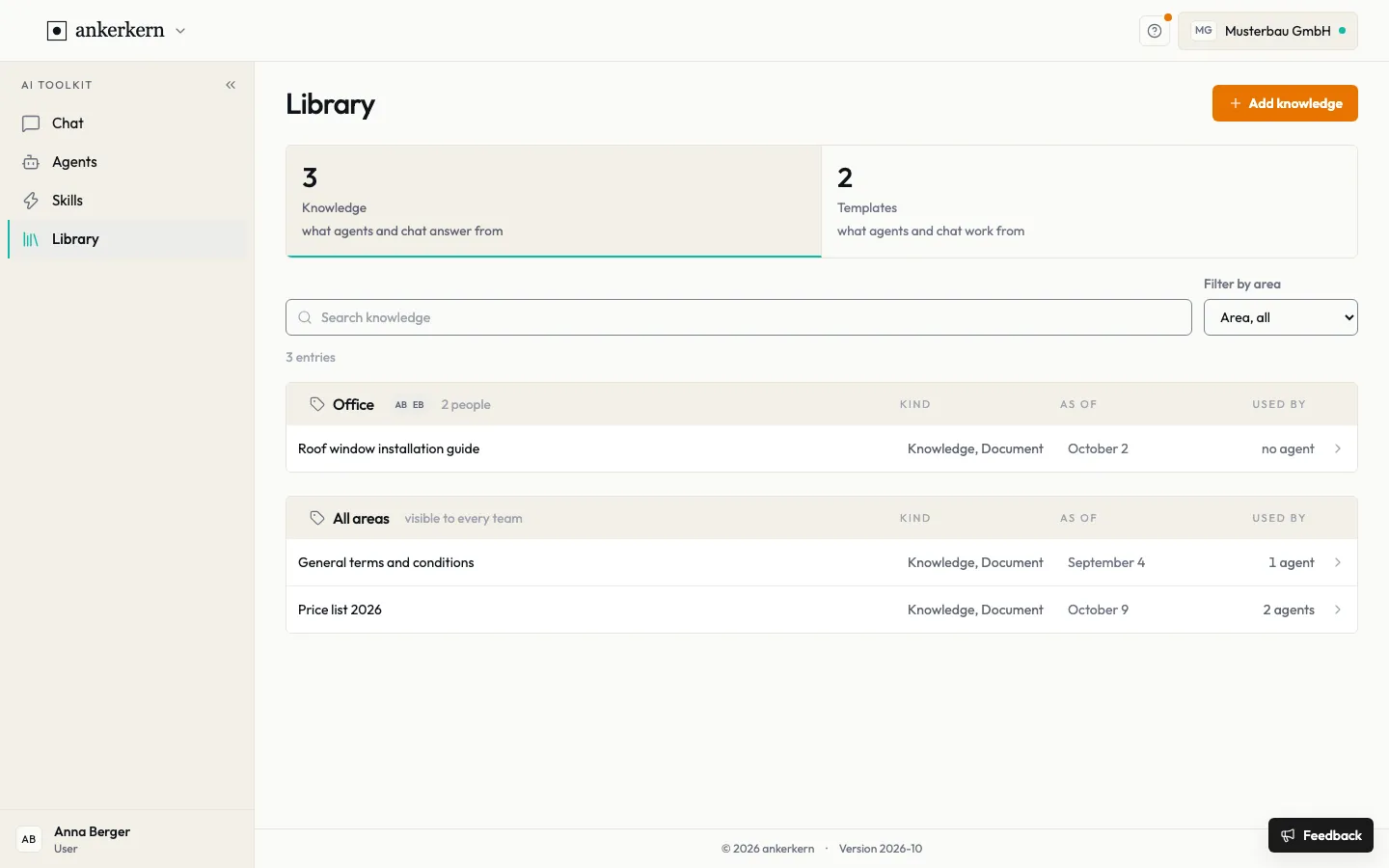
Section titled “What is it?”The library has two parts: Knowledge is what agents and chat answer from, such as price lists or manuals. Templates are what agents and chat work from, such as prompts or letter templates. Every entry lives in an area: My area, a team, or All areas.
Who is it for?
Section titled “Who is it for?”Everyone sees the entries of their areas. Everyone can add knowledge: users put it in My area, editors also in a team or in All areas.
Step by step
Section titled “Step by step”For User
Find knowledge
Section titled “Find knowledge”- Open Library on the left and choose the Knowledge tile at the top.
- Search for a name with Search knowledge, or narrow the list to one area with Filter by area.
- Click an entry. Under Preview you read its content, under Usage you see which agents work with it.
The As of column shows when the entry was last updated, the Used by column how many agents use it.
With Add knowledge you can also add knowledge yourself, as a user in My area. The steps are in the view for editors.
Search the content
Section titled “Search the content”With the Knowledge index you search not only the names but also the content of your knowledge. The search is a Preview: over the coming weeks the index may be rebuilt several times while metadata, ingestion and search are tuned.
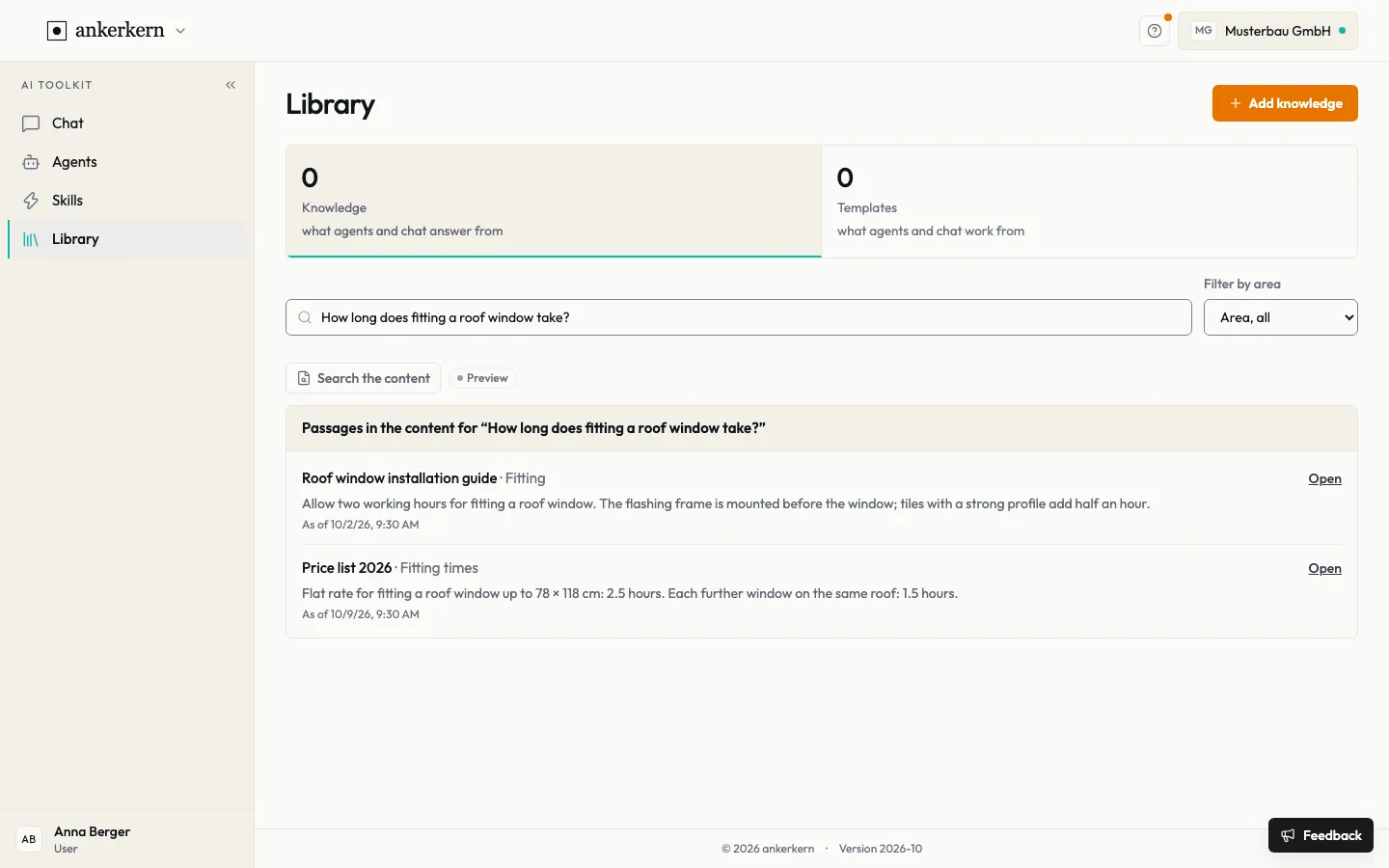
- Under Knowledge, enter a question or keywords in Search knowledge.
- Click Search the content.
- You see the matching sections with the entry they come from and its date. Open takes you to the entry.
- If nothing fits, it says No matching passage found, with up to three possible matches below to look into yourself.
Whether an entry can be found is shown on the entry under Usage, in the Knowledge index field: indexed, waiting, not readable or excluded.
For Editor
Add knowledge
Section titled “Add knowledge”- Under Knowledge, click Add knowledge.
- Under What should answers come from?, enter a Name and fill in What is it for?.
- Use Choose a file to pick a file from your computer, or Choose from connection to pick a file from one of your connections.
- Under Area, decide which team sees the entry. As a user you choose My area here.
- Click Add knowledge.
Ankerkern reads the file and makes it searchable. Everyone in the chosen area can then ask questions about it in chat straight away. Whether an agent also works with it is a separate decision.
Set access
Section titled “Set access”- Open the entry and choose Access.
- Under May read, choose who finds the entry in the library and in chat; under May change, who may replace it, rename it and take it out of the library.
- Click Save access.
Update or remove knowledge
Section titled “Update or remove knowledge”- Upload new version replaces the file.
- Remove from the library takes the entry out of the list and search. Earlier versions are kept; agents that work with it lose access.
Limits and rules
Section titled “Limits and rules”- File types: spreadsheets, text and PDF. A scan is read; this can take a moment.
- Your original stays untouched. Ankerkern stores its own copy; if you change the original, upload a new version.
- Ready straight away: as soon as the entry has been read, everyone in the chosen area can ask questions about it in chat.
- Visibility: whoever may not read an entry finds it neither in the library nor in chat.
- Searching the content: you only find passages from entries you may read. If access changes, this applies from the next search. Entries from personal connections are not searched.
Frequently asked questions
Section titled “Frequently asked questions”Why can’t I see an entry? It lives in an area you do not belong to, or you have no read access. Also check the Filter by area filter.
How do I use knowledge in chat? In chat, choose Add a source and then From the library.
Who sees entries in “My area”? Only you.
What does “no agent” in the “Used by” column mean? No agent works with this entry. You can still use it in chat.