Voice agents
What is it?
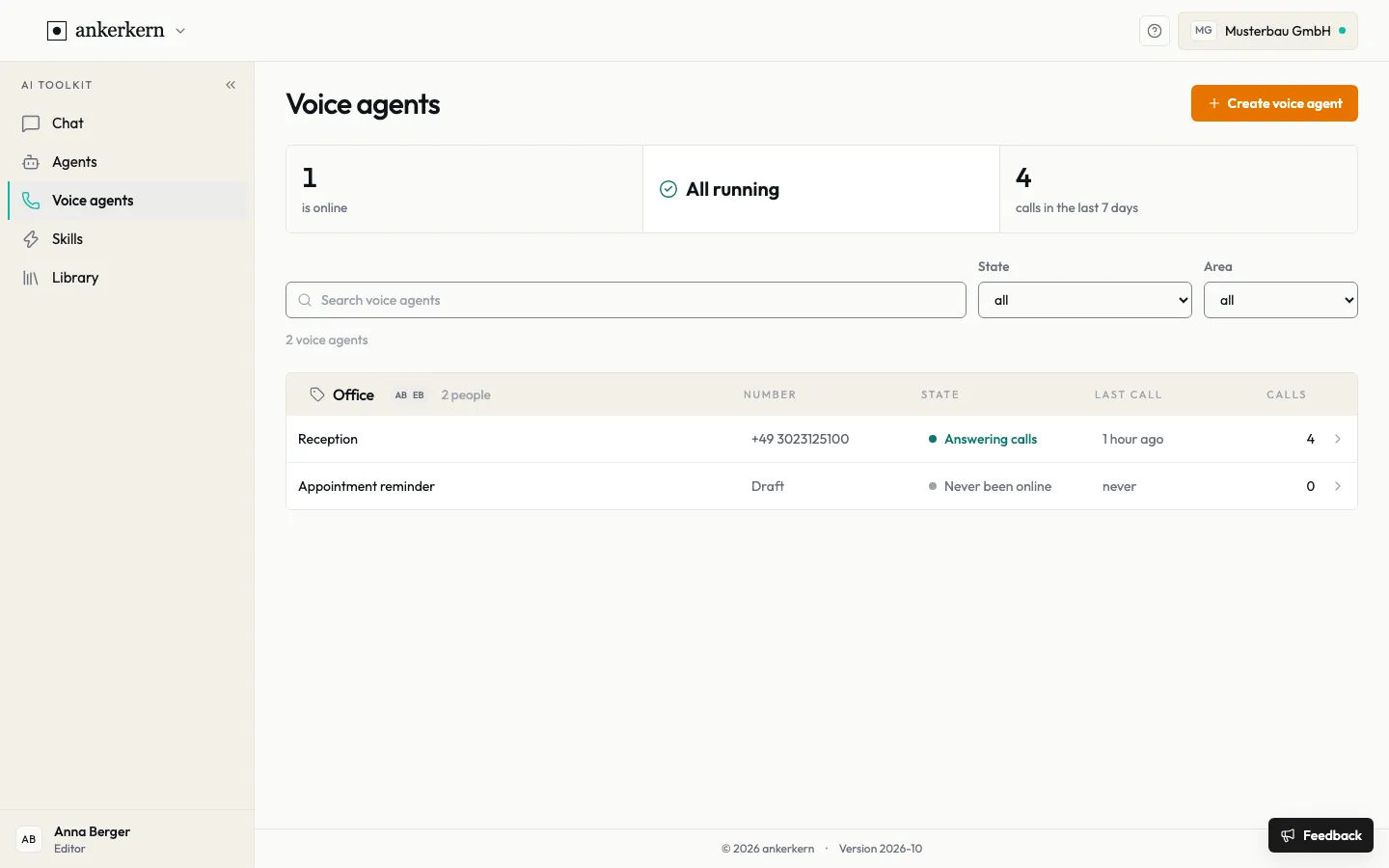
Section titled “What is it?”Voice agents handle phone calls for your company, for example as a reception desk when nobody in the office picks up. The overview shows each voice agent’s number, state, last call and number of calls.
Who is it for?
Section titled “Who is it for?”For editors. Users do not see this area.
Step by step
Section titled “Step by step”For Editor
Create a voice agent
Section titled “Create a voice agent”Click Create voice agent in the overview. Setup has five steps:
- What is the agent for? Enter the name it uses on the phone, choose the team and the Direction: Answer calls or Place calls.
- How should it sound? Check the Procedure and choose the models and the Voice; use listen to hear a voice first. The Real time, speech to speech procedure and, in step 1, the Answer calls direction are preselected; you choose the models and the voice yourself.
- Now tell us how a call goes. Answer the assistant’s questions in your own words. What we have so far shows which points are settled and which are still open.
- Which number is it reached on? Choose a number or Choose later under Phone.
- Your release. Read the greeting and the instruction, confirm with I have read the greeting and the instruction and release them. and click Create voice agent.
Save and continue later lets you pause setup at any time.
The new voice agent starts offline. As long as it is not active, your phone rings as before.
Test and publish
Section titled “Test and publish”- Open the voice agent and choose Test.
- Under Talk here in the browser, click Start conversation. On the first start your browser asks whether the page may use the microphone. You speak like a caller; nothing reaches a real number.
- If needed, change the greeting and instruction under Assignment and save with Save new version.
- Click Publish and confirm. From the next ring on, every caller hears this version. Calls in progress stay on the previous one.
Take offline stops the voice agent. It then no longer answers or places calls; your settings are kept.
Let the agent search knowledge
Section titled “Let the agent search knowledge”A voice agent can look things up in the library knowledge during a call. The tool is off for every agent until you choose it.
- Open the voice agent and choose Technical.
- Open Tools and choose Search knowledge under Add a tool.
- Save and publish a new version.
The agent finds only knowledge shared with the whole organisation or with its team and gets at most three short passages per question. The search is a Preview: over the coming weeks the index may be rebuilt several times.
Understand the states
Section titled “Understand the states”| State | Meaning |
|---|---|
| Answering calls | The voice agent is online and answers incoming calls. |
| Calling | The voice agent is online and places calls itself. |
| Fault | The voice agent has a fault. Check it and contact your administration. |
| Offline | The voice agent has been taken offline. |
| Draft | The voice agent has been created but is not fully set up yet. |
| Never been online | No version has been published yet. |
Limits and rules
Section titled “Limits and rules”- Phone numbers: you choose from the numbers enabled for your company. If no matching number is enabled yet, contact your administration. A number is only taken once you publish the agent.
- You set yourself the name, team, voice, greeting, instruction, number and when to publish.
- AI notice: you are responsible for the agent identifying itself as AI on the phone. The assistant pays attention to this during setup and reminds you, but you decide the greeting.
- Archived voice agents are listed at the bottom of the overview.
Frequently asked questions
Section titled “Frequently asked questions”Can I test a voice agent before callers reach it? Yes. Under Test you talk to it in the browser. Callers only reach it once a version is published and it is online.
I changed the greeting, but callers still hear the old one. Save the change with Save new version, then click Publish.
Why can’t I choose a number? No matching number is enabled for your company yet. Choose Choose later under Phone and contact your administration.
Can I go back to an earlier version? Yes. Under Versions, choose the older version, save it as a new version and publish it.